
DAM Folder Structure Best Practices
Series: AEM Assets Deep Dive — Part 3
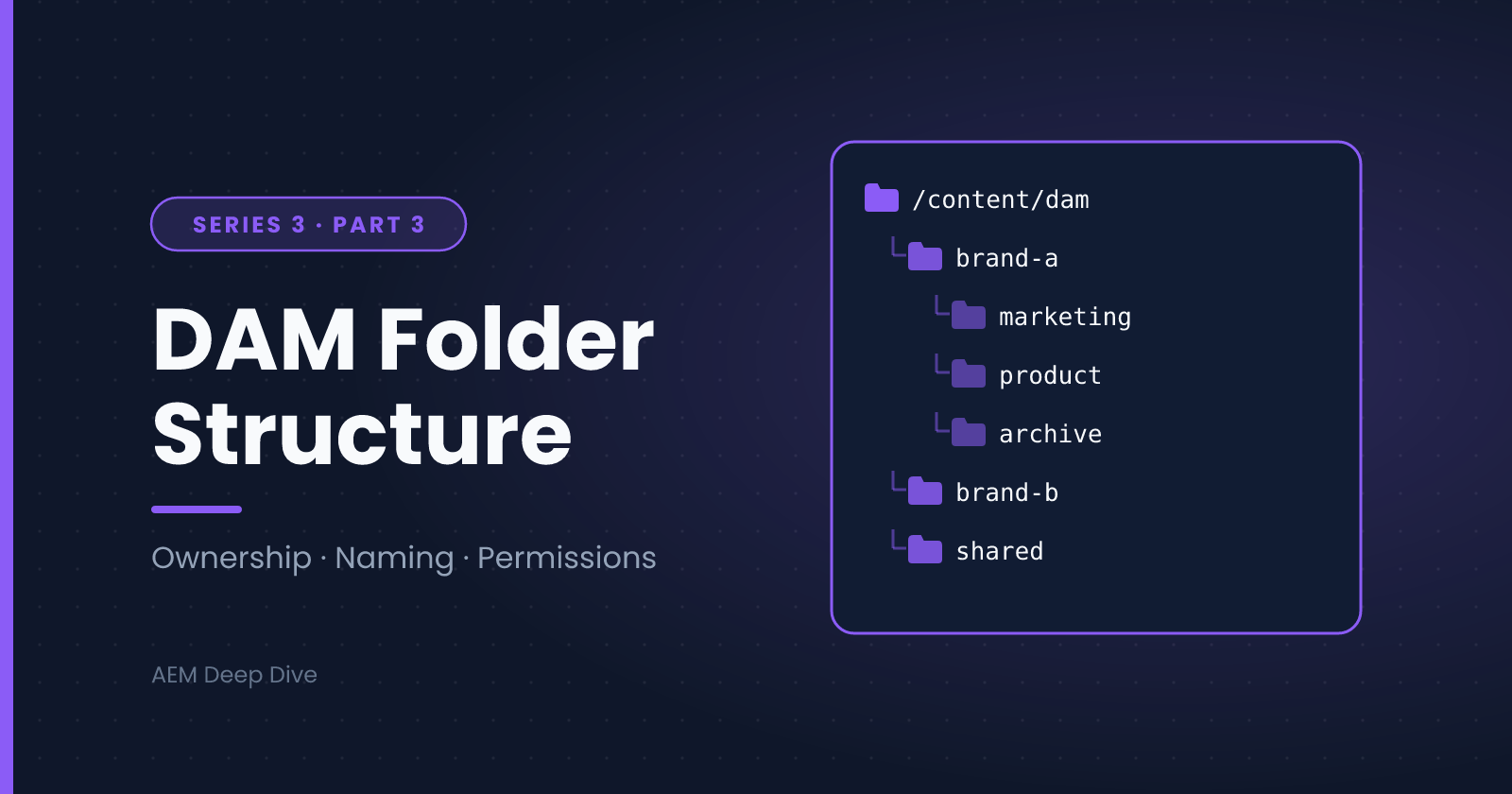
Folder structure is the decision in AEM Assets that is hardest to change later. Permissions, processing profiles, metadata profiles, auto-start workflows, search and every reference from your Sites pages all hang off the folder tree. A good structure makes everything else easier, while a bad one gets more expensive as your library grows. This post covers how to design it well.
Why Folder Structure Matters
In AEM, a folder is much more than a place to put files. It's where you attach:
- Permissions: who can view, edit or publish
- Processing profiles: which renditions get generated
- Metadata profiles and schemas: which fields apply
- Auto-start workflows: what runs after upload
- Smart Tag settings: whether AI tagging is enabled
- Governance: ownership, archiving and expiry
Settings on a folder apply to everything underneath it, so the structure you choose determines how cleanly you can apply them.
Principle 1: Organize by Ownership and Purpose, Not by File Type
The most common mistake is a structure like this:
/content/dam/mycompany/
├── images/
├── videos/
├── pdfs/
└── logos/
It looks tidy on day one, but it gives you no way to set permissions per brand or team, mixes unrelated content, and ends up with thousands of unrelated files in one folder.
Better to organize by who owns the content and what it's for:
/content/dam/mycompany/
├── brand-a/
│   ├── global/            ← logos, templates, brand guidelines
│   ├── marketing/
│   │   └── campaigns/
│   │       └── 2026-q4-launch/
│   └── product/
│       └── <product-or-sku>/
├── brand-b/
│   └── ...
└── shared/                ← assets used by every brand
File type is handled better by metadata (every asset already has a MIME type) and by search filters, not by folders.
Principle 2: Use Metadata and Tags for Everything Else
Folders give each asset one location, but assets have many attributes: campaign, region, season, usage rights, product line. Don't encode all of that in the path.
- Use folders for ownership, permissions and processing rules
- Use metadata fields for structured attributes (region, language, usage rights, expiry)
- Use tags for descriptive, searchable concepts
A single image can be in one folder, yet appear in searches for "summer", "emea" and "social-media" because it carries those tags and metadata values.
Principle 3: Keep the Hierarchy Shallow and Predictable
- Aim for three to five levels for most content. Deeper trees are hard to navigate and tempt people to put things in the wrong place
- Make each level answer one question (brand, then function, then campaign or product)
- Keep the same pattern across brands and regions, so people can find things without training
- Document the structure in a short guide, and keep it visible
Principle 4: Mind the Number of Items per Folder
Very large folders slow down the Assets UI and make operations like moving and reprocessing heavier. Folders created in the UI are typically ordered folders, which carry extra overhead when they contain very many children.
Practical approach:
- Avoid putting thousands of assets directly in one folder
- Split high-volume content by a natural dimension, such as year and month, or product family
- Test with realistic volumes before launch, rather than after
Exact limits depend on your environment and release, so check Adobe's current guidance when sizing a large library.
Principle 5: Naming Conventions
Names become URLs, appear in Sites references and get typed into search. Set rules early and enforce them:
- Lowercase, with hyphens instead of spaces (
summer-campaign, notSummer Campaign) - No special characters or accented characters in folder and file names
- Meaningful names, not
IMG_0042.jpgorfinal-v2-NEW.png - Dates in a sortable format, such as
2026-10or2026-q4 - No version numbers in file names. AEM keeps versions of every asset, so use Versions instead
Note that AEM sanitizes some characters on upload, so the title can contain spaces and capitals while the node name stays clean. Use the title for display and the name for structure.
Principle 6: Design Permissions Around the Folders
Plan permissions together with the folder tree. In AEM as a Cloud Service, access is typically granted to groups (synchronized from Adobe IMS), and each group is mapped to folder-level permissions:
- Give each brand or team a group that can edit its own folders
- Give wider groups read access to shared and global folders
- Reserve publish rights for a smaller group of approvers
- Avoid assigning permissions to individual users
Because permissions inherit down the tree, a clean hierarchy means very few permission entries are needed. If you find yourself writing dozens of exceptions, the structure probably needs a rethink.
Principle 7: Attach Profiles at the Right Level
Apply configuration at the highest folder where it's true for everything below it:
| Setting | Where to apply it |
|---|---|
| Processing profile | Brand or content-type folders that need the same renditions |
| Metadata profile | Folders whose assets share the same metadata needs |
| Auto-start (post-processing) workflow | Folders with a shared approval or enrichment process |
| Smart Tag settings | Brand folders, or disabled on folders where AI tagging isn't appropriate |
Settings applied too low create duplicated configuration, and settings applied too high affect content that shouldn't be touched. The folder design should let you apply each setting once.
Principle 8: Plan for the Asset Lifecycle
Assets don't live forever, so build lifecycle into the design:
- Expiry: use the expiration date metadata (
prism:expirationDate) for time-limited content such as licensed photos or seasonal campaigns - Archive: create a clear place for retired content, rather than leaving it mixed in with live assets
- Ownership: every top-level folder should have a named owner who reviews it on a schedule
- Moving and renaming: moving assets through the Assets UI updates references, so prefer the UI over scripting or manual repository edits
A Practical Template
Here's a structure that works for many multi-brand organizations, with a note on where each setting typically lives:
/content/dam/mycompany/
├── brand-a/                          ← group: brand-a-editors; processing + metadata profile
│   ├── global/                       ← read-only for most; logos, templates, guidelines
│   ├── marketing/
│   │   └── campaigns/
│   │       └── 2026-q4-launch/       ← campaign assets; expiry metadata
│   ├── product/
│   │   └── <product-family>/<sku>/   ← product imagery; stricter naming
│   └── archive/                      ← retired content
├── brand-b/
│   └── (same pattern)
└── shared/                           ← cross-brand assets; wide read access
Common Anti-Patterns
- Folders by file type (
images,videos), which blocks per-team permissions - Folders by person or by date uploaded, which breaks as soon as people change roles
- Duplicating assets into many folders for convenience, when references, collections and metadata would work better
- A single enormous folder that nobody can browse or reprocess
- Inconsistent patterns across brands, which makes training and automation harder
- Permissions on individual users, which are painful to audit and maintain
Checklist Before You Launch
- Is the top level organized by ownership (brand, business unit), not file type?
- Is the depth under five levels for most content?
- Is there a written naming convention, and is it enforced?
- Are permissions defined per group, at folder level?
- Are processing profiles, metadata profiles and workflows attached at the right level?
- Does each major folder have an owner and a retirement plan?
- Have you tested with realistic asset volumes?
What's Next
With a solid folder structure, you can apply processing profiles confidently. In the final post of this series, we go deep on Asset Compute and custom processing profiles: how to generate your own renditions and metadata with a custom worker.
Next in this series: [Asset Compute Service: Custom Processing Profiles]
About the author
- AEM Technical Lead experienced with building and architecting solutions on AEM Sites and Assets. Sharing practical tutorials, real-world implementation lessons, and best practices to help fellow developers and leads navigate AEM.
Comments
Join the discussionHow is your DAM organized: by brand, region, campaign or file type? If you could redesign the structure from scratch, what would you change?
AEM Assets Deep Dive
"Practical guides to DAM workflows, smart tagging, asset processing, and managing digital assets at scale in AEM."