
AEM Workflows: Models, Process Steps and Launchers
Series: AEM Backend Advanced — Part 4
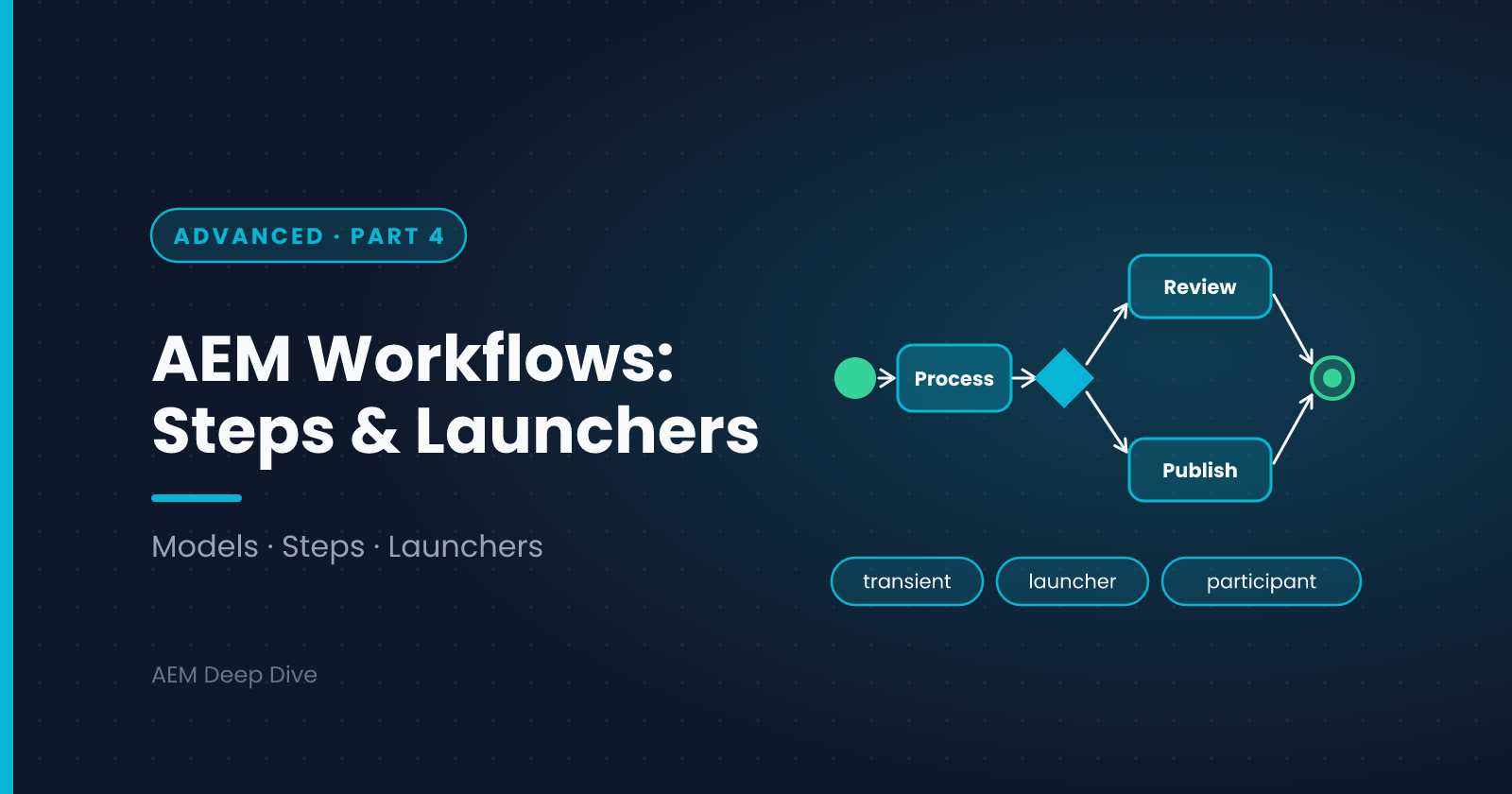
A workflow is a visual, step-by-step process attached to content: review and approve a page, translate it, tag and publish an asset. Unlike a Sling Job (code only), a workflow has a model authors can see, steps assigned to people, and a history. This post covers the general workflow engine for developers: models, custom steps, starting workflows from code, launchers, and what changes on AEM as a Cloud Service. For the Assets-specific pipeline, see the Assets series.
The Parts of a Workflow
| Part | What it is |
|---|---|
| Model | The definition: a sequence of steps and branches, built in the model editor |
| Step | One unit of work in the model |
| Payload | What the workflow runs on, usually a page or asset path |
| Instance | A running or finished execution of a model on a payload |
| Launcher | A rule that starts a workflow automatically when content changes |
Common Step Types
| Step | Use |
|---|---|
| Process Step | Runs your Java code |
| Participant Step | Gives a task to a user or group, who completes it from their inbox |
| Dynamic Participant Step | Chooses the assignee at runtime with your own code |
| OR Split / AND Split | Branch on a condition, or run branches in parallel |
| Goto Step | Loop back, for example after a rejection |
Where Models Live
You create and edit models under Tools → Workflow → Models. They are stored in the repository under /conf/global/settings/workflow/models. When you save, sync the model so it's generated as a runnable version.
For a project, keep your models in source control as part of a content package, so Dev, Stage and Production get the same model. Don't edit the product's own models under /libs. Copy one into your own area first.
Writing a Custom Process Step
A process step is an OSGi component that implements WorkflowProcess:
@Component(
    service = WorkflowProcess.class,
    property = { "process.label=My Project - Flag For Review" })
public class FlagForReviewProcess implements WorkflowProcess {

    private static final Logger LOG = LoggerFactory.getLogger(FlagForReviewProcess.class);

    @Override
    public void execute(WorkItem item, WorkflowSession session, MetaDataMap args)
            throws WorkflowException {

        String path = item.getWorkflowData().getPayload().toString();
        String reason = args.get("PROCESS_ARGS", "needs review");

        ResourceResolver resolver = session.adaptTo(ResourceResolver.class);
        Resource content = resolver.getResource(path + "/jcr:content");
        if (content == null) {
            LOG.warn("No jcr:content under {}", path);
            return;
        }

        ModifiableValueMap props = content.adaptTo(ModifiableValueMap.class);
        if (props != null) {
            props.put("reviewReason", reason);
            try {
                resolver.commit();
            } catch (PersistenceException e) {
                throw new WorkflowException("Could not flag " + path, e);
            }
        }
    }
}
In the model editor, add a Process Step, choose "My Project - Flag For Review", and pass an argument in the Arguments field.
Best practices from Adobe's workflow guidance:
- Use the session you're given. Adapt the
WorkflowSessionto aResourceResolverinstead of opening a new session of your own - Keep steps small and quick. A step is not the place for hours of processing. Hand heavy work to a Sling Job
- Be idempotent. A step can be re-run after a failure
- Throw
WorkflowExceptionfor real failures so the engine can record and show them - If the step needs more access than the workflow's user has, use a dedicated service user (see Essentials Part 4), and close its resolver
Choosing a Participant at Runtime
A dynamic participant step calls your ParticipantStepChooser:
@Component(
    service = ParticipantStepChooser.class,
    property = { "chooser.label=My Project - Pick Reviewer Group" })
public class ReviewerChooser implements ParticipantStepChooser {

    @Override
    public String getParticipant(WorkItem workItem, WorkflowSession session, MetaDataMap args)
            throws WorkflowException {
        String path = workItem.getWorkflowData().getPayload().toString();
        return path.startsWith("/content/brand-a") ? "brand-a-reviewers" : "brand-b-reviewers";
    }
}
Starting a Workflow from Code
ResourceResolver resolver = ...;   // for example from a request or a service user
WorkflowSession wfSession = resolver.adaptTo(WorkflowSession.class);

WorkflowModel model = wfSession.getModel("/var/workflow/models/myproject-review");
WorkflowData data = wfSession.newWorkflowData("JCR_PATH", "/content/myproject/en/home");
wfSession.startWorkflow(model, data);
Note the model path: the runtime copy lives under /var/workflow/models, which is what you get after the model is synced.
Launchers: Start Workflows Automatically
A launcher watches for repository changes and starts a workflow when a rule matches, such as "when a page is created under /content/myproject, run the review workflow". You manage them under Tools → Workflow → Launchers, and custom ones are stored under /conf/global/settings/workflow/launcher/config.
Handle launchers carefully:
- Make the conditions narrow. A launcher on a wide path with no property conditions can start thousands of workflows
- Avoid loops. If your workflow modifies the payload in a way that matches the launcher again, it will start itself repeatedly
- Never edit launchers under
/libs. Create your own configuration
Transient Workflows for High Volume
A normal workflow stores its history in the repository. For automatic, high-volume processing where you don't need an audit trail, mark the model as a transient workflow. Nothing is stored per step, which reduces repository load considerably. Adobe's guidance recommends this for such cases. Check the documentation for the restrictions on step types in transient workflows, since steps that need to persist state (such as participant steps) don't fit.
AEM as a Cloud Service vs 6.5
| Topic | AEM 6.5 | AEM as a Cloud Service |
|---|---|---|
| Workflow engine | Available on Author | Available on Author, running on a cluster |
| Asset processing | The DAM Update Asset workflow, started by a launcher | Handled by Asset Compute and a post-processing workflow. Don't build new asset processing on launchers |
| Custom process steps | Standard OSGi components | The same, but they must be cluster-safe and use service users |
| Models and launchers | Often created by hand on the instance | Keep them in source control and deploy through the pipeline |
| Instance history cleanup | Purge configured on the instance | Keep the purge configuration in your project so it's the same everywhere |
| Local behavior | Matches production closely | Local is single-instance. Test on a Dev environment |
Common Pitfalls
- A launcher fires too often. Narrow the path and add property conditions
- The model changes don't take effect. You saved but didn't sync, or your code points at the design-time path instead of the runtime one
- A step "works" but changes nothing. It used a different resolver and never committed
- Workflow piles up in the inbox. Participants who left, or a step assigned to a group nobody monitors
- Heavy processing in a step. Offload it to a job
What's Next
Most real features eventually call something outside AEM. The next post covers integrating external systems: HTTP clients, timeouts, caching and secrets, and the network rules on Cloud Service.
Next in this series: [Integrating External Systems: HTTP Clients, Timeouts and Secrets]
About the author
- AEM Technical Lead experienced with building and architecting solutions on AEM Sites and Assets. Sharing practical tutorials, real-world implementation lessons, and best practices to help fellow developers and leads navigate AEM.
Comments
Join the discussionWhat workflow do you automate most, such as review, translation or approval? And have you ever had a launcher fire far more often than you expected? Tell me what narrowed it down.
AEM Backend Advanced
Factory configurations, filters and listeners, jobs, workflows, integrations, security and Cloud-ready code for AEM as a Cloud Service, with 6.5 differences.