
AEM Assets Workflows & Automation
Series: AEM Assets Deep Dive — Part 1
Every asset that enters AEM goes through some form of processing: renditions are generated, metadata is extracted, and, if you want, extra steps such as tagging, approvals or notifications run afterwards. This post explains how that pipeline works in AEM as a Cloud Service, how it differs from AEM 6.5, and how to extend it with your own workflows.
The Big Shift: 6.5 vs Cloud Service
In AEM 6.5 (on-premise or AMS), one workflow did almost everything:
- A workflow launcher fired on upload
- The DAM Update Asset workflow generated renditions, extracted metadata and ran any custom steps, all inside AEM
In AEM as a Cloud Service, the work is split:
| Stage | 6.5 | Cloud Service |
|---|---|---|
| Upload | Binary streams through AEM | Direct binary upload to cloud storage |
| Rendition generation | Workflow steps inside AEM | Asset Compute microservices, driven by processing profiles |
| Extra steps (tagging, approvals, custom logic) | Same DAM Update Asset workflow | Post-processing workflow |
| What triggers it | Workflow launchers | Upload or reprocessing, with the post-processing workflow configured on the folder |
The key mental model: processing profiles handle binary manipulation and renditions, and the post-processing workflow handles everything else. If you try to resize images or transcode inside a workflow step on Cloud Service, you're fighting the platform.
The Cloud Service Asset Pipeline
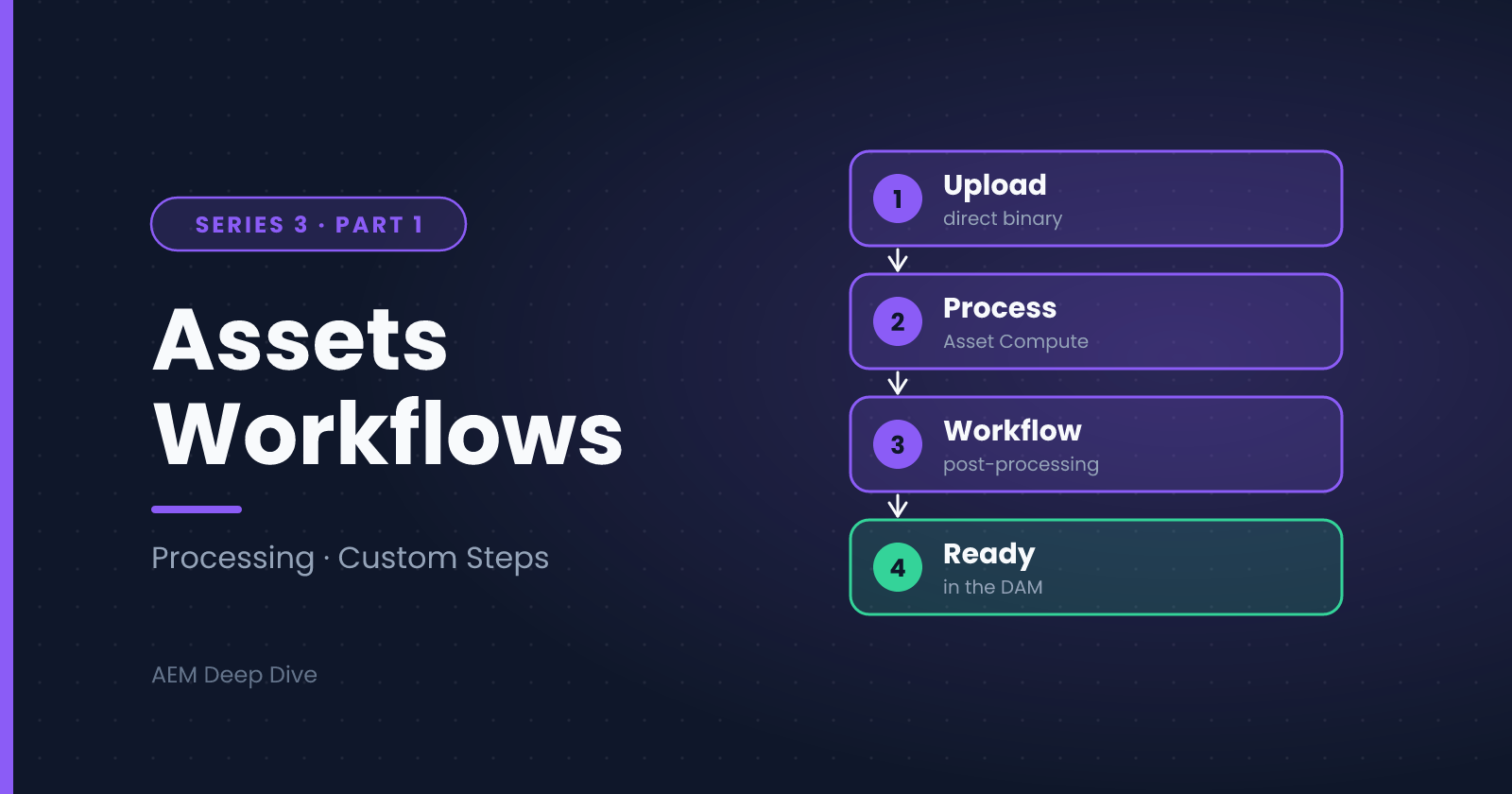
When someone uploads an asset, the flow looks like this:
- The binary is uploaded directly to cloud storage and AEM creates the asset node
- Asset Compute generates renditions and extracts metadata, according to the processing profile that applies to the asset's folder
- When processing completes, AEM runs the post-processing workflow (the default one, or a custom one you've configured)
- The asset is ready for use
Because step 2 runs outside AEM, uploads scale without loading your Author instance.
The Default Post-Processing Workflow
AEM ships a default Assets Cloud Post-Processing workflow model. You can inspect it under Tools → Workflow → Models. It handles the standard clean-up and finalization steps after Asset Compute has finished.
Rule: never edit the default model. Copy it, give the copy a meaningful name, and add your steps to the copy. That way you carry forward any default steps AEM provides and avoid losing changes when the platform updates.
Creating a Custom Post-Processing Workflow
- Go to Tools → Workflow → Models
- Select the default Assets Cloud Post-Processing model and choose Copy
- Open your copy, rename it (for example, "Custom Asset Post-Processing"), and edit it
- Add your steps using the workflow model editor
- Sync the model so it is generated as a runnable workflow
Then configure it on the folder where you want it to run:
- In Assets, select the folder and open Properties
- Find the Asset Processing settings and choose your workflow as the Auto-start workflow
- Save
From then on, every asset uploaded or reprocessed under that folder runs your workflow after processing completes. The setting applies to the folder's descendants, so apply it at the highest folder where it makes sense.
Common Workflow Steps
Workflow models are built from steps. The ones you'll use most for Assets:
| Step type | Typical use |
|---|---|
| Process Step | Runs an OSGi WorkflowProcess, your custom Java logic |
| Participant Step | Assigns a task to a user or group (review, approval) |
| Dynamic Participant Step | Chooses the assignee at runtime |
| OR / AND Split | Branch on conditions or run steps in parallel |
| Goto Step | Loop back, for example after a rejected review |
| Form Participant Step | Collects extra input from a reviewer |
Writing a Custom Process Step
A process step is an OSGi component that implements WorkflowProcess. Here's an example that stamps a copyright value onto each asset's metadata:
package com.myproject.core.workflow;

import com.adobe.granite.workflow.WorkflowException;
import com.adobe.granite.workflow.WorkflowSession;
import com.adobe.granite.workflow.exec.WorkItem;
import com.adobe.granite.workflow.exec.WorkflowProcess;
import com.adobe.granite.workflow.metadata.MetaDataMap;
import org.apache.sling.api.resource.ModifiableValueMap;
import org.apache.sling.api.resource.PersistenceException;
import org.apache.sling.api.resource.Resource;
import org.apache.sling.api.resource.ResourceResolver;
import org.osgi.service.component.annotations.Component;

@Component(
    service = WorkflowProcess.class,
    property = { "process.label=Set Copyright Metadata" }
)
public class SetCopyrightProcess implements WorkflowProcess {

    @Override
    public void execute(WorkItem item, WorkflowSession session, MetaDataMap args)
            throws WorkflowException {

        String assetPath = item.getWorkflowData().getPayload().toString();
        ResourceResolver resolver = session.adaptTo(ResourceResolver.class);
        Resource metadata = resolver.getResource(assetPath + "/jcr:content/metadata");

        if (metadata == null) {
            return;
        }

        ModifiableValueMap props = metadata.adaptTo(ModifiableValueMap.class);
        if (props != null) {
            props.put("dc:rights", "© My Company");
            try {
                resolver.commit();
            } catch (PersistenceException e) {
                throw new WorkflowException("Could not save metadata for " + assetPath, e);
            }
        }
    }
}
Points to notice:
process.labelis the name authors see when they pick the step in the workflow editor- The payload is the asset path in a post-processing workflow
- You can pass arguments to the step through the
MetaDataMap, configured in the step's properties, which makes one process reusable in many workflows - Throw a
WorkflowExceptionon failure so the workflow engine can record and surface the error
After deploying your bundle, add a Process Step to your model and select Set Copyright Metadata as the process.
What Not to Do in a Workflow on Cloud Service
- Don't process binaries in workflow steps. Use an Asset Compute worker (covered in Part 4 of this series)
- Don't depend on workflow launchers for new asset processing. Use the folder-level auto-start setting
- Don't make steps slow or chatty. Large batches of uploads multiply the cost of every step
- Don't hard-code environment values. Read them from OSGi configuration
Other Automation Options
Workflows aren't the only way to automate Assets:
- Metadata profiles apply default metadata to everything uploaded to a folder
- Processing profiles automate renditions, with no code required for the standard ones
- Asset expiry (the
prism:expirationDateproperty) controls when assets stop being available - Event-driven apps built on Adobe I/O Events can react to asset events outside AEM, for example to notify another system
Troubleshooting
- Workflow didn't start: confirm the workflow is selected on the right folder, the model is synced, and the asset was uploaded or reprocessed under that folder
- Workflow stuck or failed: check Tools → Workflow → Instances and Failures, then retry or terminate
- Custom process not in the dropdown: the OSGi component isn't active, so check your bundle in the Felix console
- Renditions missing: this is a processing profile or Asset Compute problem, not a workflow problem. Check the profile on the folder and reprocess the asset
What's Next
You've seen how workflows extend asset processing. Next we look at one of the most useful automations AEM offers out of the box: Smart Tags, which use AI to tag your assets and make them far easier to find.
Next in this series: [Smart Tags and AI-Based Tagging]
About the author
- AEM Technical Lead experienced with building and architecting solutions on AEM Sites and Assets. Sharing practical tutorials, real-world implementation lessons, and best practices to help fellow developers and leads navigate AEM.
Comments
Join the discussionOn Cloud Service, what do you automate after an upload: metadata, approvals, notifications or something else? And if you're moving from 6.5, which workflow steps were the hardest to migrate?
AEM Assets Deep Dive
"Practical guides to DAM workflows, smart tagging, asset processing, and managing digital assets at scale in AEM."